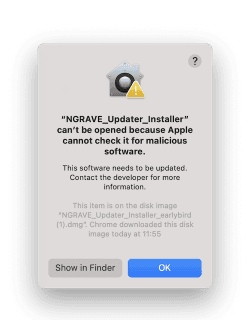
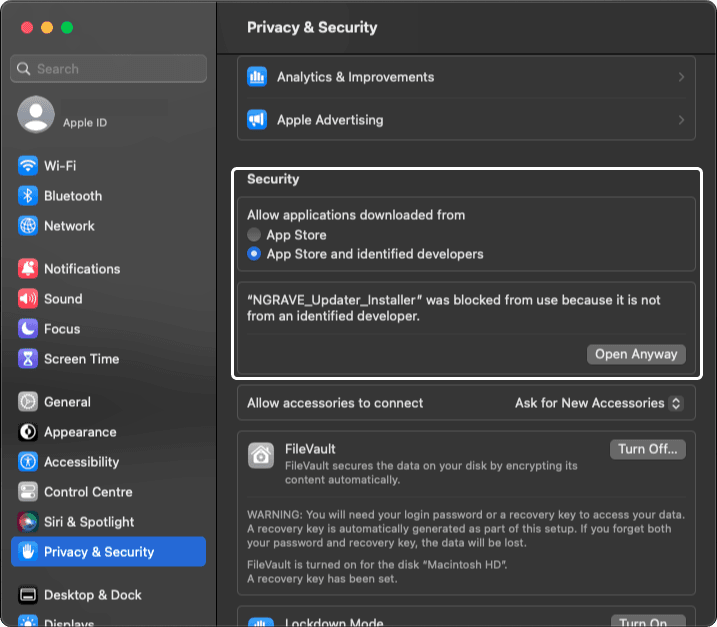
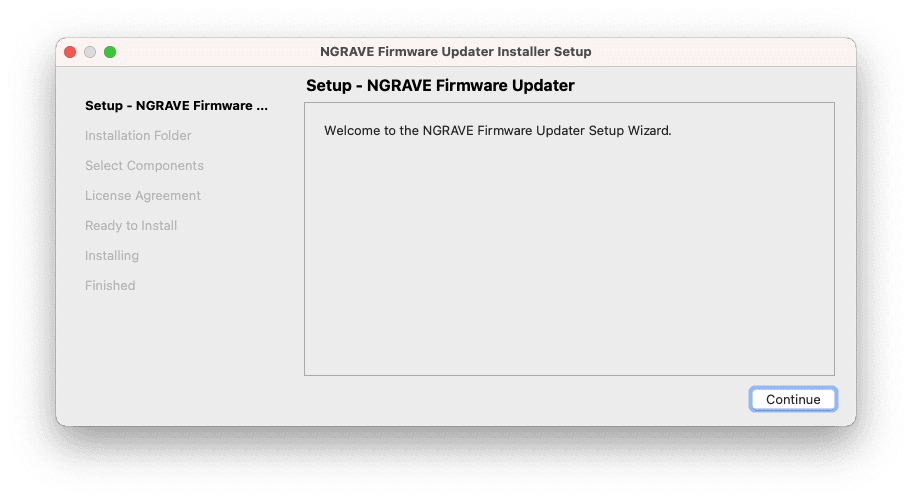
3. Update your ZERO using our Firmware Updater
IMPORTANT: When you reach step 5 below. Don't follow the steps in the updater tool but follow the steps on this page.
Step 1 - Launch the NGRAVE Firmware Updater Tool
Carefully read the instructions on the screens.
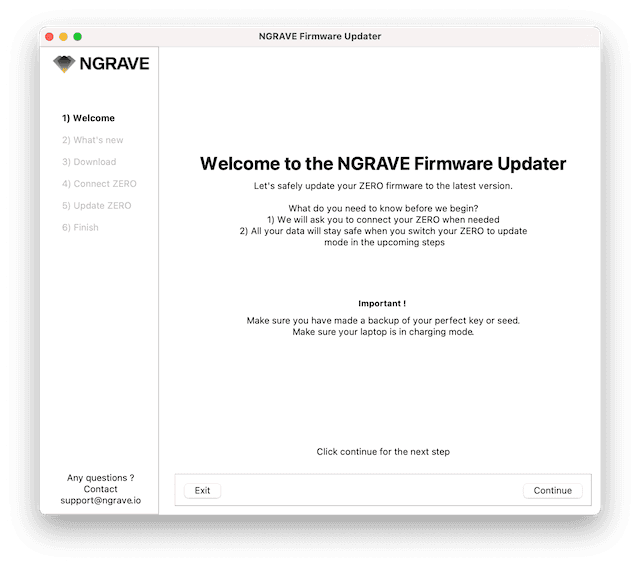
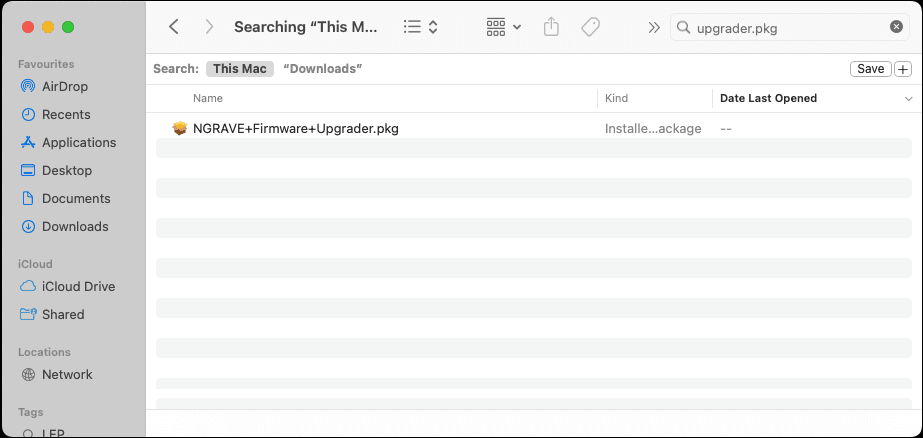
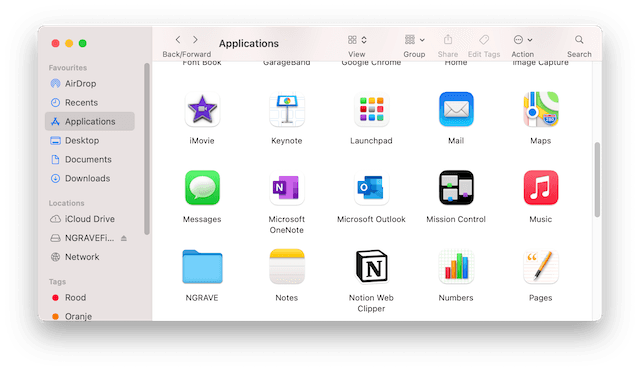
NOTE: If your NGRAVE Firmware Updater is not open yet go to your Applications on your Mac and look for NGRAVE Firmware Updater:
Go to Finder > Applications > NGRAVE then double-click on NGRAVE Firmware Updater.
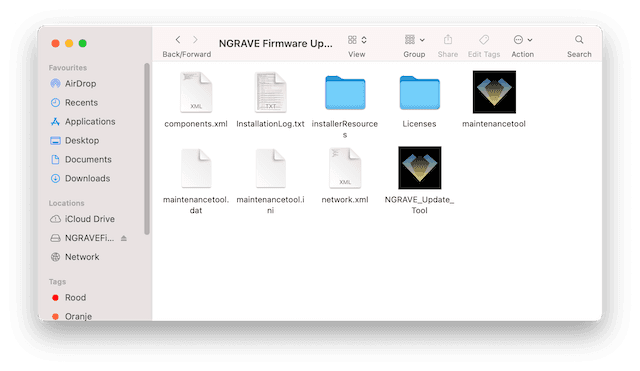
Then you will need to double-click on NGRAVE_Update_Tool to actually launch the Updater.
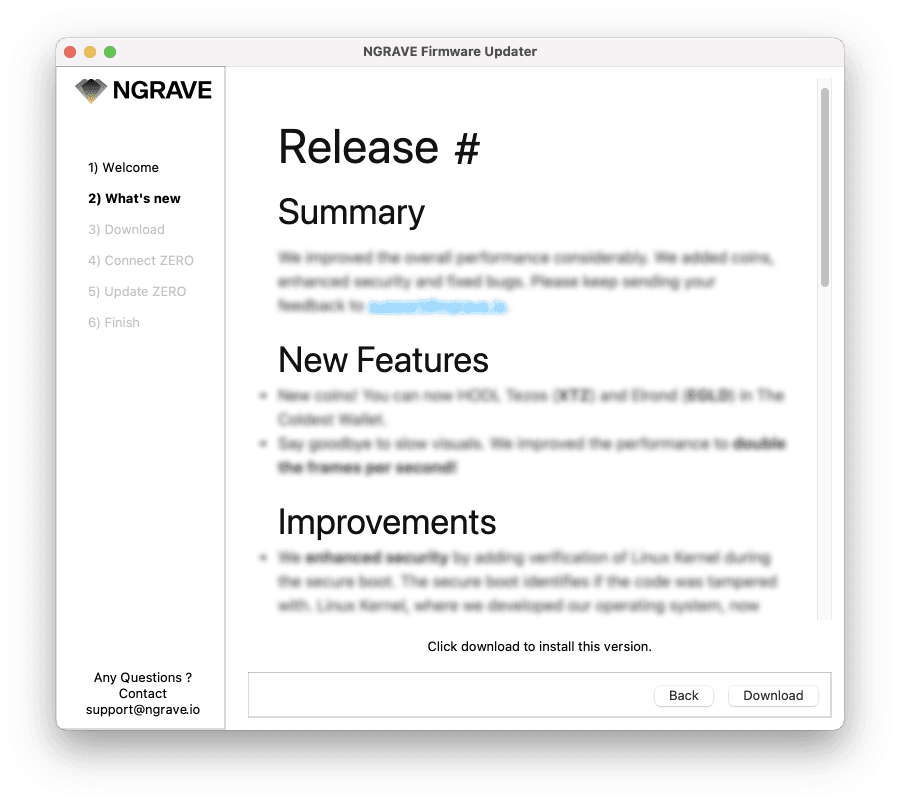
Step 2 - Follow the steps on the Firmware Updater tool
You will see the Release Notes and you will be asked to download the new software.
Click on Download.
Step 3 - Wait for the download of the firmware
You are now downloading on your computer the latest version of the ZERO firmware that you will soon be installing on your cold wallet.
After the tool has downloaded the firmware update, it will cryptographically check the integrity of the file. This way it is impossible to install an update that is not signed by NGRAVE.
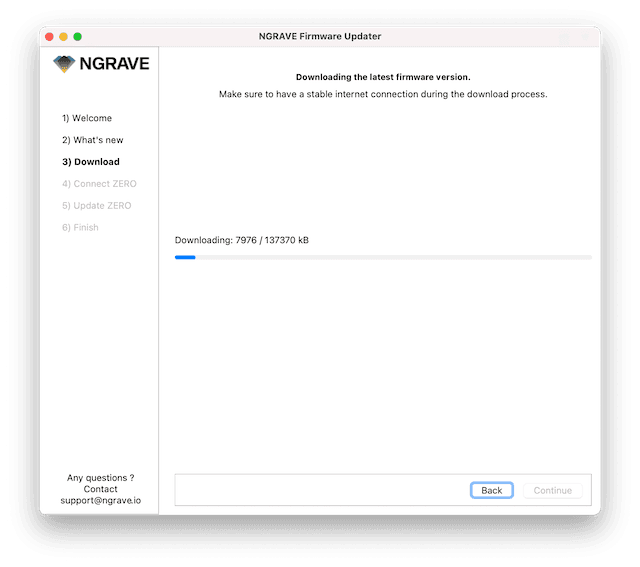
Step 4 - When the download is complete, click on Continue
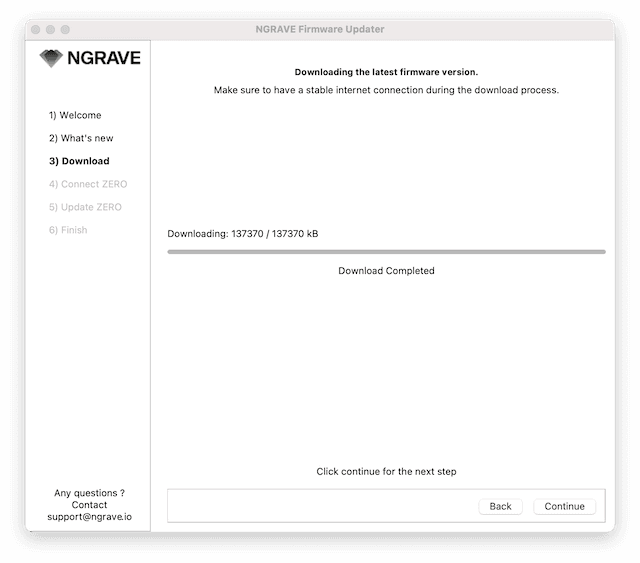
IMPORTANT: Step 5 - Don't follow the steps on the screen but follow the steps below on this page.
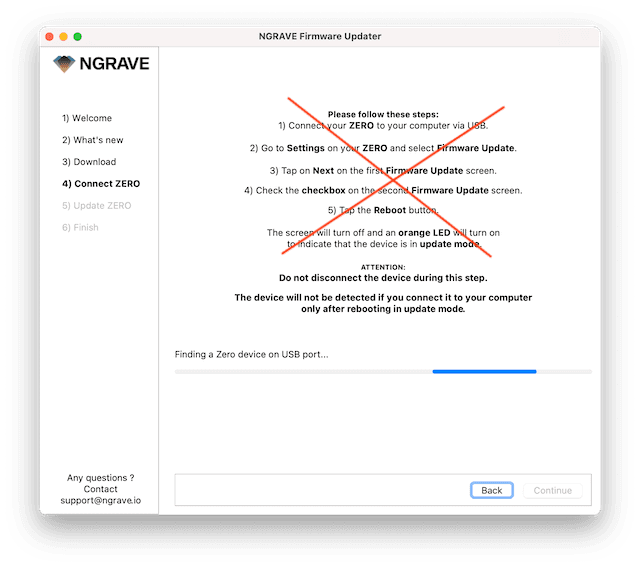
Step 5a - Connect your ZERO to your computer via USB
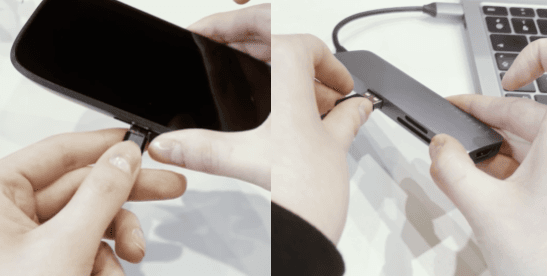
If your computer does not have a USB port, please use an adaptor.
Step 5b - Put the ZERO in update mode
To install a firmware update, your ZERO needs to be in update mode. Customers without a seed phrase need to activate update mode by using this power button combination:
1) Double-tap & hold the power button for 5 seconds on the second tap until the LED starts blinking.
2) Confirm by tapping & holding the power button for 2 seconds until the LED stays on.

3) The updater tool will now detect your ZERO.
IMPORTANT: Do not disconnect your ZERO while it is in Update Mode.
Step 6 - Once the device is found, press on Continue
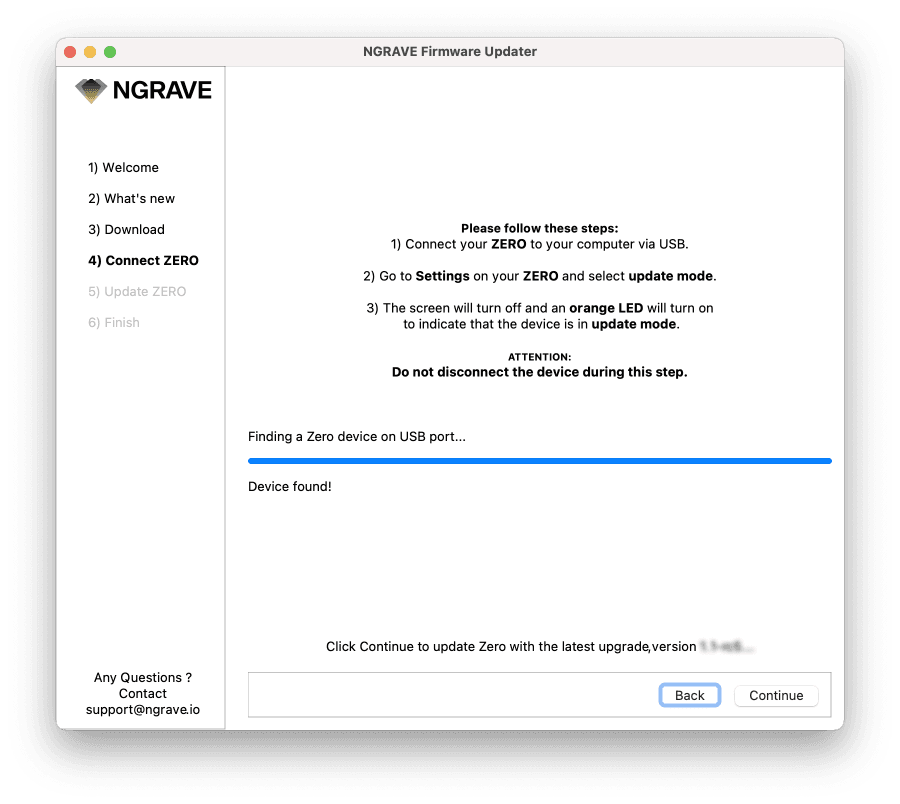
If the updater tool does not find the ZERO, these are some checks to perform:
- Check that your ZERO is correctly connected to your computer.
- Make sure that you have completed Step 5c correctly and you have pressed Reboot on your ZERO.
Step 7 - Wait for your ZERO to update
Do not disconnect your ZERO from the computer.
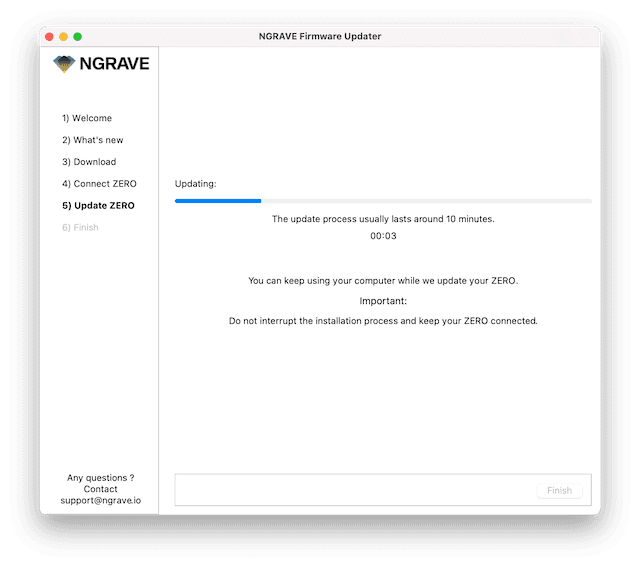
The update can take up to 10 min.
Step 8 - Once the update is done, click on Finish
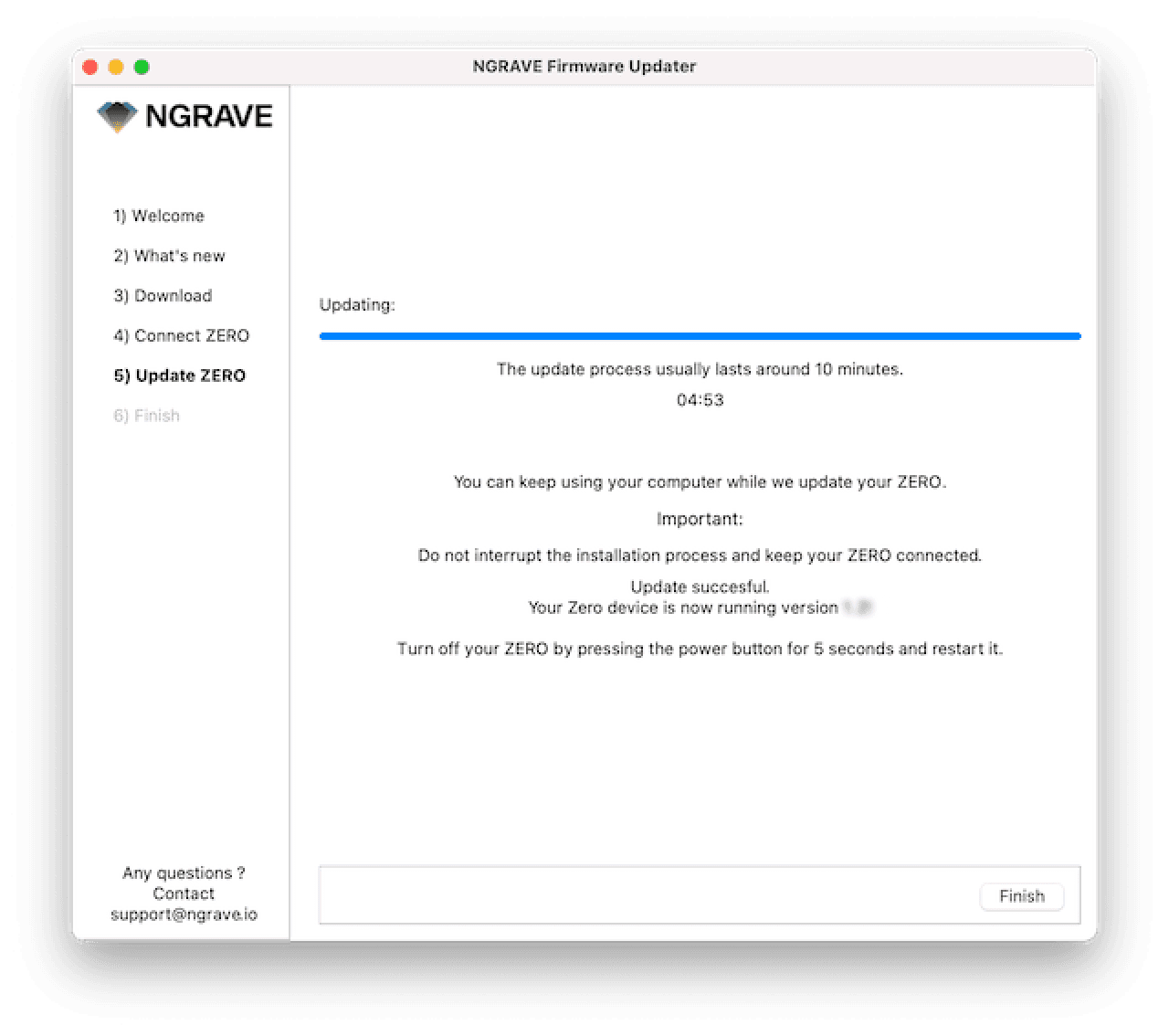
Step 9 - You are officially done with your ZERO firmware update
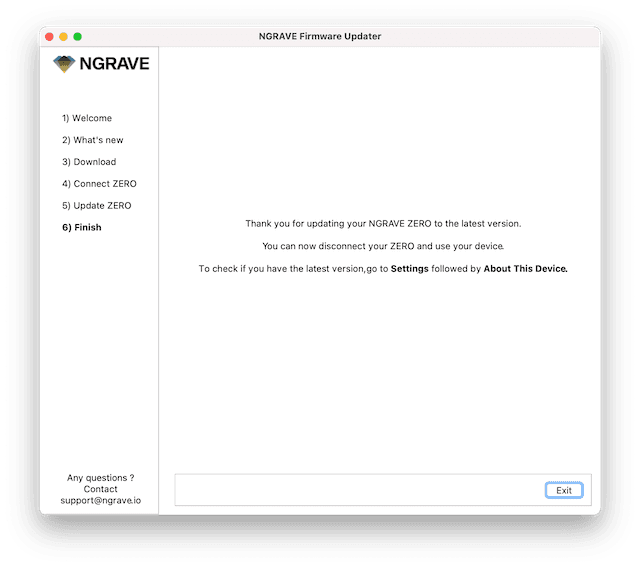
You can now safely disconnect your ZERO from your computer. Click on Exit to close the tool.
Step 10 - Create your Perfect Key and check your firmware version in ZERO
Go to Settings on the top right part of the screen and then go to About this device.
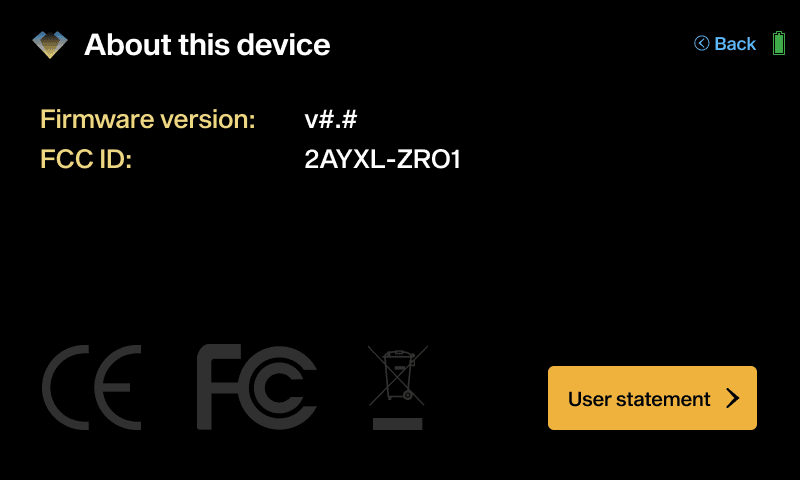
You will now be able to see that your firmware version has been updated to v1.8.
Congratulations, you updated your ZERO's firmware!
< Back to the OS choice